
Vibeflo Documentation
Learn how to build reliable, repeatable AI automation workflows that execute step by step without breaking.
Introduction
Vibeflo is a desktop application for building and running large AI automations without worrying about the LLM stopping execution or missing steps. It lets you chain AI prompts, CLI commands, and nested flows into reliable, repeatable workflows.
Key Benefits
- Reliable Execution — Flows run step by step, maintaining context throughout the entire session
- Modular Design — Break complex automations into reusable flows that can call each other
- Multiple Providers — Works with Cursor, OpenAI, Anthropic, Ollama, and more
- Context Preservation — The AI remembers everything from previous steps in the same session
- Artifact Tracking — Automatically detects files created or modified during execution
Who It's For
Vibeflo is designed for developers, automation engineers, and power users who want to create complex AI-powered workflows that need to be reliable and repeatable.
Installation
Download Vibeflo for your platform:
| Platform | Download | Requirements |
|---|---|---|
| macOS | DMG (Intel & Apple Silicon) | macOS 10.15+ |
| Windows | Installer (.exe) | Windows 10+ |
| Linux | AppImage / DEB | Ubuntu 20.04+ or equivalent |
On first launch, you may see a security warning. On macOS, right-click and select "Open" to bypass Gatekeeper. On Windows, click "More info" → "Run anyway".
Quick Start
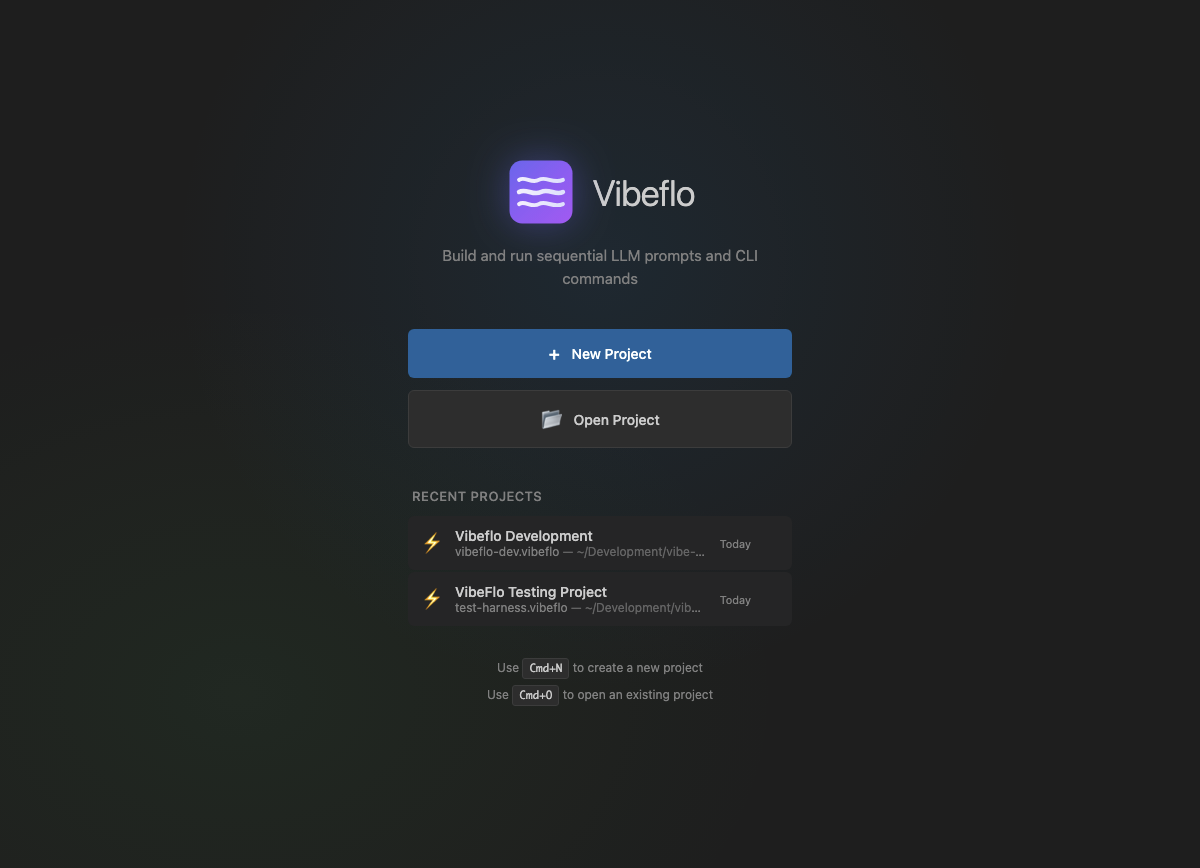
When you first open Vibeflo, you'll see the Welcome screen with options to create a new project or open an existing one.
Interface Overview
The main interface has three parts:
- Activity Bar (left edge) — Switch between Flows, Runners, and Settings views
- Sidebar — Lists your flows, tools, rules, or runner sessions depending on the view
- Editor Area — Where you edit flows, view output, or configure settings
The sidebar is resizable. Drag the edge to adjust its width between 150px and 400px.
Your First Flow
Let's create a simple flow that uses AI to analyze a file:
- Create a flow: Click the
+button in the Flows sidebar to add a new flow - Name your flow: Click on "New Flow" to rename it to something like "Analyze Code"
- Add a prompt step: Click
+ Add Stepand select "Prompt". Enter: "Analyze the current project structure and summarize what you find" - Add a CLI step: Click
+ Add Stepagain and select "CLI". Enter:ls -la - Run the flow: Click the "Run All" button at the top of the flow editor
- View output: The Runners view will open automatically, showing your flow's execution
Congratulations! You've created and run your first flow. The AI received the file listing from the CLI command and used it to provide an analysis.
Flows
A Flow is a named collection of steps that execute in order. Each flow has:
- A unique name
- An ordered list of steps
- Optional group assignment for organization
- Flow-level settings (context, execution options)
Flow List Features
- 🔍 Search — Type to filter flows by name or group
- 📁 Groups — Organize flows into collapsible groups
- ↕️ Drag & Drop — Reorder flows by dragging them
Right-Click Context Menu
Right-click any flow to access these options:
- Move to Group — Assign the flow to a group
- Rename — Edit the flow name
- Duplicate — Create a copy of the flow
- Delete — Remove the flow (with confirmation)
- Copy Run Command — Copy CLI command to run this flow
Steps
A Step is a single action within a flow. Steps execute top-to-bottom, and the AI maintains context throughout the entire session.
Common Step Properties
| Property | Description |
|---|---|
| Title | Display name shown in the step list |
| Enabled | Toggle whether the step executes (can be toggled off to skip) |
| Prompt Before Run | Ask user to confirm before running this step |
| Continue on Error | If unchecked, the flow stops when this step fails |
| Notes | Optional documentation/comments for the step |
Available Step Types
Context Variables
Context variables let you store values that can be used in subsequent steps. Use the {{variableName}} syntax to reference them.
Example
- Create a Context step with variable name
project_nameand valueMyApp - In a later Prompt step, write:
Create a README for {{project_name}} - When executed, the AI receives:
Create a README for MyApp
Variable Sources
- Context steps — Set explicitly in the flow
- Input steps — Collected from user at runtime
- Flow settings — Flow-level context
- Orchestration — Passed from spawn plans
Variables are case-sensitive. {{ProjectName}} and {{projectname}} are different variables.
Nested Flows
A Flow step can reference another flow, executing its steps inline. This enables modular, reusable automation design.
Context Inheritance
- Inherit Context (default) — The referenced flow shares the same LLM session and sees all previous context
- Isolated Context — The referenced flow runs in a fresh LLM session. A summary is injected back into the parent when complete
Parallel Execution
Enable "Run in Parallel" to spawn the referenced flow as a separate runner session. The parent flow continues immediately without waiting.
Parallel flows appear as separate tabs in the Runners view with a ⎇ prefix.
📝 Prompt Step
Sends text to the configured LLM provider. This is the most common step type.
Fields
- Title — Display name for the step
- Prompt — The text to send to the AI
Use Cases
- Asking the AI to analyze, generate, or modify code
- Getting explanations or summaries
- Providing instructions for subsequent steps
>_ CLI Step
Runs a shell command. The output is captured and automatically injected into the AI's context.
Fields
- Title — Display name for the step
- Command — The shell command to execute
Context Injection
After a CLI step runs, the AI receives a message like:
I just ran this CLI command: `npm run build`
Here is the output: `Build successful. 42 files compiled.`
Use Cases
- Running build commands (
npm run build) - Git operations (
git status,git diff) - File operations (
ls,cat) - Custom scripts
⚡ Flow Step
Executes another flow, enabling modular automation design.
Fields
- Flow — Select which flow to execute
- Inherit Context — Share the LLM session with parent flow
- Run in Parallel — Spawn as separate runner session
Use Cases
- Breaking large flows into smaller, reusable pieces
- Running long operations in the background
- Orchestrating multiple independent tasks
🏷️ Label Step
A named marker that can be the target of Query or Jump steps. Labels don't execute anything—they just mark a position in the flow.
Fields
- Label Name — Unique name for this marker
Use Cases
- Creating loop targets
- Marking sections for conditional jumps
❓ Query Step
Asks the AI a yes/no question and conditionally jumps to a label based on the response.
Fields
- Query — The yes/no question to ask the AI
- Target Label — Which label to jump to
- Negate Result — Invert the jump condition
- Sleep Before Jump — Optional delay before jumping (in seconds)
Logic
| AI Response | Normal Mode | Negated Mode |
|---|---|---|
| "true" | Jump to label | Continue |
| "false" | Continue | Jump to label |
Use Cases
- Retry loops ("Did the build succeed?")
- Conditional branching
- Validation checks
✏️ Input Step
Pauses execution to ask the user a question, then uses their response in a templated prompt.
Fields
- Question — Displayed to the user
- Prompt Template — Sent to AI with
{{response}}replaced by user's answer
Example
- Question: "What feature should I implement?"
- Template: "Implement {{response}} following best practices"
- User enters: "dark mode"
- AI receives: "Implement dark mode following best practices"
📚 Context Step
Sets a named variable for template interpolation in subsequent steps.
Fields
- Variable Name — The name to reference (e.g.,
project_name) - Value — The value to set
- Prompt Mode — Optionally prompt user for the value
- Skip if Loaded — Skip if this variable was already set
Nested Interpolation
You can use existing variables in context values:
Step 1: base_url = "https://github.com/myorg"
Step 2: repo_url = "{{base_url}}/myrepo"  → Uses base_url
⏱️ Sleep Step
Pauses execution for a specified duration.
Fields
- Duration — Seconds to wait
Features
- Visual progress bar in the console
- Respects stop button during sleep
- Auto-generated title: "Sleep X"
Use Cases
- Rate limiting API calls
- Waiting for external processes
- Pacing prompts to avoid overwhelming the LLM
⏰ Wait Step
Pauses execution until a specific date and time.
Fields
- Target DateTime — When to resume execution
Use Cases
- Scheduled operations
- Time-based workflows
↩️ Jump Step
Unconditionally jumps to a label. Simpler than Query when no condition is needed.
Fields
- Target Label — The label to jump to
Use Cases
- Creating infinite loops
- Unconditional flow control
ℹ️ Note Step
A documentation-only step that is never executed. Use it to add comments, TODOs, or section headers within your flow.
Fields
- Note Text — Multi-line documentation
Use Cases
- Documenting complex flow logic
- Adding TODO reminders
- Explaining step dependencies
- Creating visual section dividers
🎯 Orchestrate Step
Uses AI to spawn multiple parallel runs from a natural language command.
Fields
- Command — Natural language description of what to spawn
Example Commands
- "Run code review on these MRs: [URL1] [URL2] [URL3]"
- "Research Redis, Memcached, and Hazelcast"
- "Run the build flow on all repos in ~/Development"
Features
- Preview spawn plan before execution
- Edit, add, or remove items from the plan
- Automatic list detection (URLs, numbered items, bullets)
Flows View
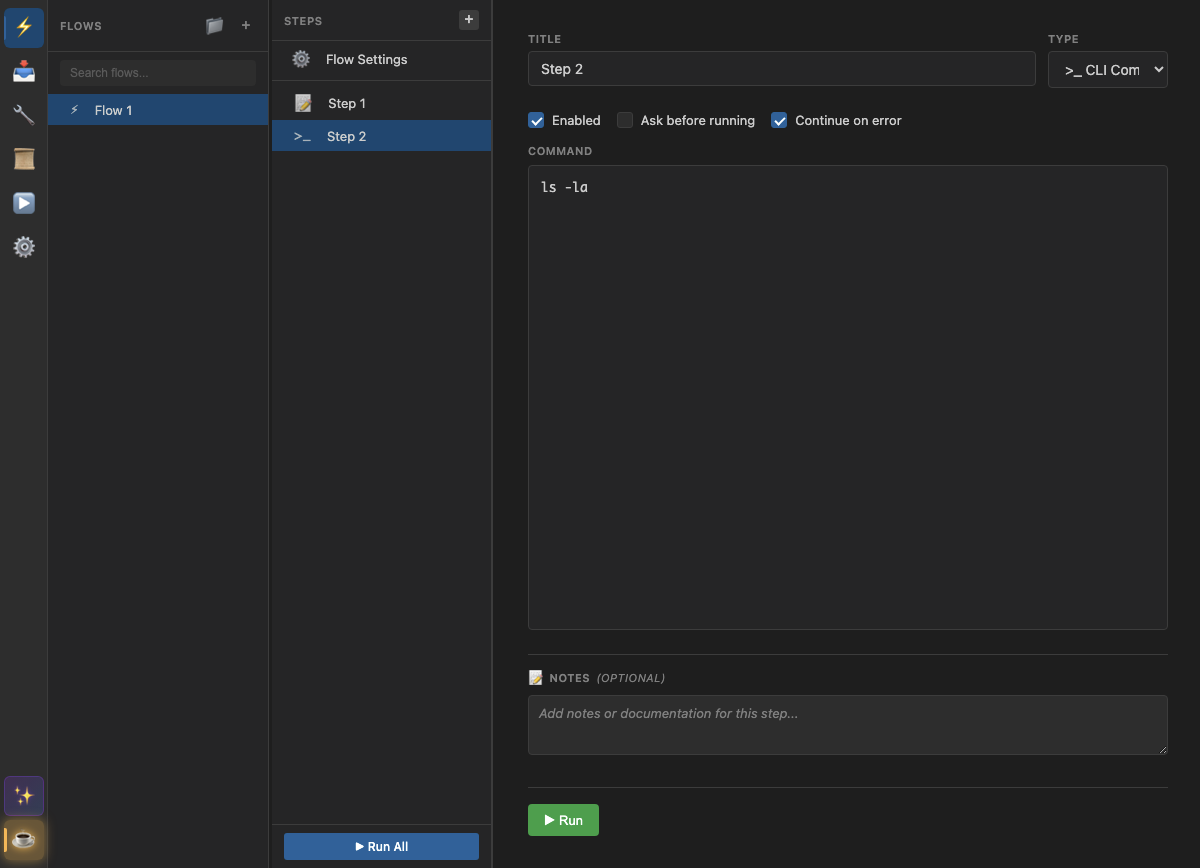
The Flows view is where you create and edit your automation flows.
Layout
- Sidebar — List of flows with search, groups, and drag-drop
- Step List — Ordered steps in the selected flow
- Step Editor — Configuration for the selected step
Flow Settings
Every flow has a Flow Settings panel at the top with:
- Flow name
- Group assignment
- Enable/disable toggle
- Prompt before run option
- Export toggle (for imports)
- Context configuration
- Copy run command button
Runners View
The Runners view shows your execution sessions and their output.

Left Panel — Session List
Sessions are organized into three collapsible sections:
- ✅ Completed — Finished, stopped, or failed runs
- 🔄 Running — Active and paused runs
- ⏳ Queued — Waiting runs (drag to reorder)
Right Panel — Console
- Editable session name
- Status indicator
- Stop/Clear buttons
- Real-time console output
- Command queue with edit/rerun/delete options
- Input area for interactive commands
Interactive Commands
Use the input area to send commands to an active session:
- 📝 Prompt — Send text to the AI
- >_ CLI — Run a shell command
- ⚡ Flow — Run a flow from your project
Settings View
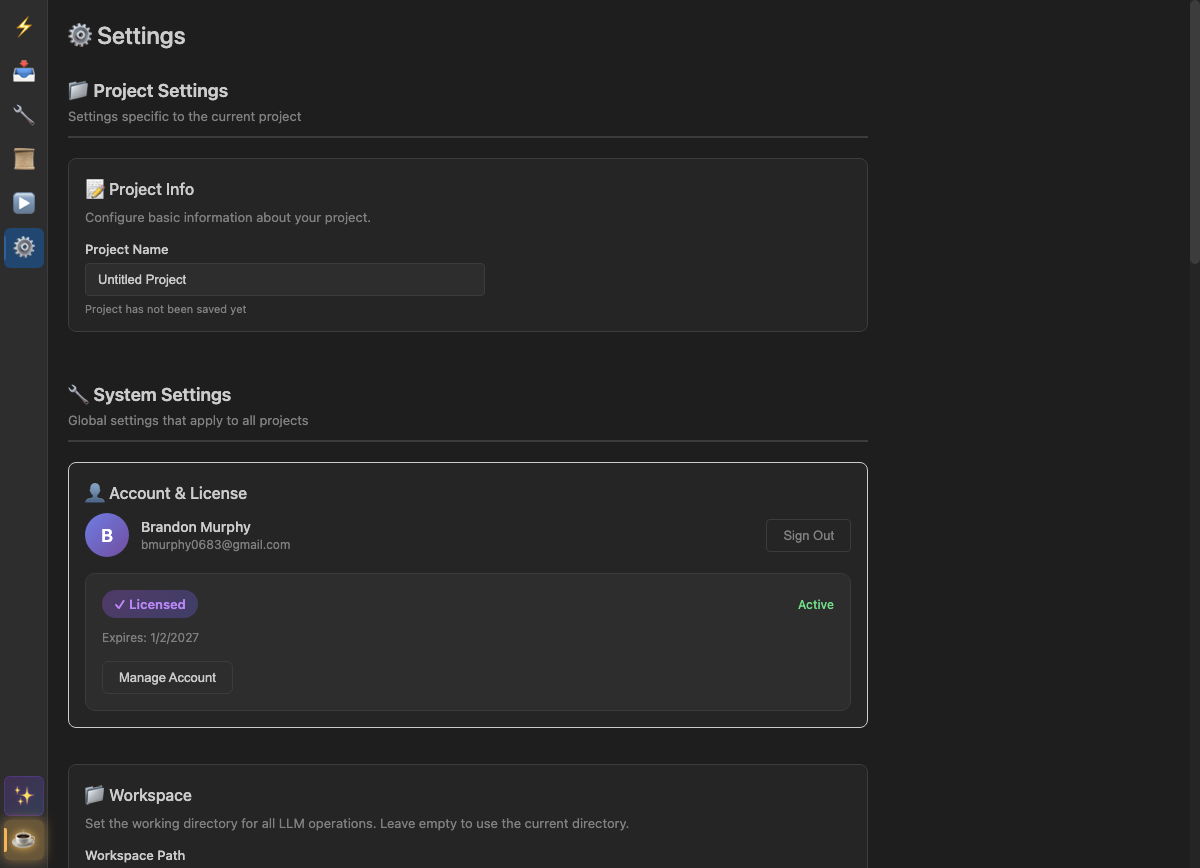
Configure workspace, providers, and account settings.
Sections
- Workspace — Set the working directory for CLI commands
- Runner — Max concurrent runners (0 = unlimited)
- Question Detection — Auto-pause when AI asks questions
- LLM Providers — Configure Cursor, OpenAI, Anthropic, etc.
- Connection Retry — Automatic retry on network errors
- Account — Sign in, license status, manage account
- About & Updates — Version info and auto-updates
LLM Providers
| Provider | Type | Configuration |
|---|---|---|
| Cursor (Claude) | CLI | Cursor must be installed |
| OpenAI | API | API key, model selection |
| Anthropic | API | API key, model selection |
| Ollama | API | Local server URL |
📝 Prompt Tools
Prompt tools inject instructional text into the LLM's context at the start of each flow.

How They Work
- When a flow starts (with "Reload Tools & Rules" enabled)
- All enabled prompt tools are sent to the AI
- The AI acknowledges and can use the tools during the session
Example Tool
You have access to the GitHub CLI (gh). Use it for:
- Creating issues: gh issue create
- Listing PRs: gh pr list
- Checking repo status: gh repo view
🔌 MCP Server Tools
MCP (Model Context Protocol) tools connect to external servers that provide additional capabilities.
Configuration
| Field | Description |
|---|---|
| Command | Executable to run (e.g., npx, node) |
| Arguments | Command arguments |
| Environment | Environment variables (supports ${VAR} syntax) |
| Working Directory | Where to run the server |
| Connection Timeout | Seconds to wait for connection (default: 30) |
| Continue on Error | Whether to abort if connection fails |
Status Indicators
- 🟢 Connected — Server running, tools available
- 🟡 Connecting — Starting server process
- ⚫ Disconnected — Not connected
- 🔴 Error — Connection failed
Rules
Rules are mandatory instructions that the AI must follow. Unlike tools, rules are always enforced.

Example Rule
ALWAYS use TypeScript instead of JavaScript.
NEVER modify files outside the src/ directory.
Format all code with Prettier before committing.
Global vs Project Scope
Tools and rules can be scoped globally or to a specific project.
| Scope | Storage | Visibility |
|---|---|---|
| Global | ~/.vibeflo/config.json |
All projects |
| Project | .vibeflo file |
This project only |
Project tools/rules with the same ID override global ones.
Project Imports
Import flows from other .vibeflo project files without copying them.
How It Works
- Add an import pointing to another project file
- Flows marked as "Exported" in that project become available
- Reference imported flows in your Flow steps
Export Checkbox
In Flow Settings, enable "Export this flow" to make it visible when the project is imported by others.
✨ AI Assistant
Use natural language to create and modify flows, tools, and rules. Click the ✨ button in the Activity Bar to open the assistant.
Flows
Create or update automation workflows:
- Create: "Create a code review flow that checks style and tests"
- Update: "Update Build to add a deploy step at the end"
- Modify: "Add error handling to the Deploy flow"
Tools
Create or update prompt tools that get injected into LLM context:
- Create: "Create a tool with instructions for using our GitLab CLI"
- Update: "Shorten the GitLab CLI tool to about 800 characters"
- Modify: "Update the Browser tool to include screenshot examples"
Specify scope with "global" or "project" - defaults to project-level.
Rules
Create or update behavioral rules for the LLM:
- Create: "Create a rule for our coding standards"
- Update: "Update the style rule to require JSDoc comments"
- Modify: "Make the error handling rule more strict"
Tips
- Be specific about what you want changed
- Reference existing items by name for updates
- The AI sees your current flows, tools, and rules for context
- Watch the output in the Runner view as it generates
Orchestration
Use natural language to spawn multiple parallel runs.
How It Works
- Create an Orchestrate step or use the Orchestrate button
- Enter a command: "Run code review on these PRs: [list of URLs]"
- The AI generates a spawn plan
- Review and edit the plan
- Execute to spawn parallel runs
List Detection
The orchestrator automatically detects:
- URLs on separate lines
- Numbered items (1. item, 2. item)
- Bulleted items (-, *, •)
- Comma-separated values
CLI Runner
Run flows from the command line without the GUI.
Basic Usage
# Run a flow
vibeflo -p my-project.vibeflo -f "Build & Test"

# List available flows
vibeflo -p my-project.vibeflo --list

# Validate project
vibeflo -p my-project.vibeflo --validate
Options
| Option | Short | Description |
|---|---|---|
--project |
-p |
Path to project file |
--flow |
-f |
Name of flow to run |
--list |
-l |
List all flows |
--cwd |
-c |
Working directory |
--validate |
Validate without running |
Exit Codes
0— Success1— Failure130— User interrupt (Ctrl+C)
Configuration File
Vibeflo stores global configuration in a JSON file. The config file only contains your explicit overrides—all other settings use code defaults.
Location
| Platform | Path |
|---|---|
| macOS | ~/Library/Application Support/vibeflo/config.json |
| Windows | %APPDATA%\vibeflo\config.json |
| Linux | ~/.config/vibeflo/config.json |
How Config Works
Vibeflo uses a "defaults + user overrides" approach:
- Code defaults are always used unless you explicitly change a setting
- Only your changes are saved to the config file
- New features automatically use their defaults without requiring config updates
To reset to defaults, simply delete your config file. Vibeflo will recreate it as needed.
User-Configurable Settings
These settings can be customized in the config file:
General Settings
| Setting | Type | Description |
|---|---|---|
workspacePath |
string | Default working directory for flows |
disableSandbox |
boolean | Allow CLI commands to skip approval prompts |
debugMode |
boolean | Enable debug logging |
maxConcurrentRunners |
number | Maximum parallel runner sessions (0 = unlimited) |
activeProviderId |
string | ID of the active LLM provider |
Provider Settings (per provider)
| Setting | Type | Description |
|---|---|---|
enabled |
boolean | Whether the provider is available for use |
name |
string | Display name for the provider |
model |
string | Model ID (e.g., "gpt-4o", "claude-3.5-sonnet") |
apiKey |
string | API key for the provider |
baseUrl |
string | Custom API base URL |
timeout |
number | Request timeout in milliseconds |
maxTokens |
number | Maximum tokens per response |
temperature |
number | Creativity/randomness (0.0 - 2.0) |
Question Detection
| Setting | Type | Description |
|---|---|---|
questionDetection.enabled |
boolean | Auto-pause when AI asks questions |
questionDetection.sensitivity |
string | "low", "medium", or "high" |
Connection Retry
| Setting | Type | Description |
|---|---|---|
retry.enabled |
boolean | Enable automatic retry on network errors |
retry.maxAttempts |
number | Maximum retry attempts |
retry.delayMs |
number | Delay between retries (milliseconds) |
Internal Tools
| Setting | Type | Description |
|---|---|---|
internalTools.browserHeadless |
boolean | Run browser tool without visible window |
System-Controlled Settings
These settings are managed by Vibeflo and cannot be overridden in the config file:
type— Provider type (cursor-cli, openai, anthropic, etc.)command— CLI command for CLI-based providersoutputFormat— Output format flagssupportsResume— Whether the provider supports session resumeverboseFlag— Verbose output flagpermissionFlag— Permission/sandbox flagworkspaceFlag— Workspace directory flagworkspaceRequired— Whether a workspace is required
System-controlled settings always use code defaults to ensure compatibility with new features and bug fixes.
Example Config File
A minimal config file with just user overrides:
{
  "activeProviderId": "openai-default",
  "maxConcurrentRunners": 3,
  "providers": [
    {
      "id": "openai-default",
      "enabled": true,
      "model": "gpt-4o",
      "temperature": 0.5
    }
  ],
  "questionDetection": {
    "enabled": true,
    "sensitivity": "medium"
  }
}
Account & License
Creating an Account
- Click "Sign In" in Settings
- Your browser opens to the sign-in page
- Sign in with email/password or Google
- The app automatically activates your license
License Tiers
| Tier | Features | Devices |
|---|---|---|
| Trial | All features for 14 days | Unlimited |
| Pro | All features | Up to 3 |
| Enterprise | All features + team management | Unlimited |
Offline Mode
Your license remains valid for 7 days without internet connection. After 7 days offline, you'll need to connect to revalidate.
Keyboard Shortcuts
| Action | Windows/Linux | macOS |
|---|---|---|
| New Project | Ctrl + N | ⌘ + N |
| Open Project | Ctrl + O | ⌘ + O |
| Save | Ctrl + S | ⌘ + S |
| Save As | Ctrl + Shift + S | ⌘ + Shift + S |
| Undo | Ctrl + Z | ⌘ + Z |
| Redo | Ctrl + Y | ⌘ + Shift + Z |
| Close Project | Ctrl + W | ⌘ + W |
| Quit | Ctrl + Q | ⌘ + Q |
Troubleshooting
Flow Won't Start
- Check if the flow is enabled in Flow Settings
- Verify a workspace path is set in Settings
- Confirm an LLM provider is configured and active
LLM Not Responding
- Check your API key is valid
- Verify network connection
- Try enabling Connection Retry in Settings
- For Cursor provider, ensure Cursor is installed
MCP Server Won't Connect
- Verify the command path is correct
- Check environment variables are set
- Increase the connection timeout
- Review the console for error messages
Missing Context Variables
- Ensure the Context step runs before the step using the variable
- Check variable name spelling (case-sensitive)
- Verify the Context step is enabled
Getting Help
Need assistance? We're here to help!
Email us at support@vibeflo.tech and we'll get back to you as soon as possible.